

Account Linking Guide
Date: 2026-03-14 18:00:12
Together We Run, Bound by Destiny
Greetings, Star Guardians.
This is
For Star Guardians who are looking forward to
Please refer to the details below for more information.
■ PlayStation®5 & Steam Account Linking Guide
- When accessing the game through PlayStation®5 or Steam, you can choose how to link your PSN or Steam platform account with the game through the initial pop-up displayed when launching the game.
- For additional linking options or to manage and check your linked accounts, please refer to the ‘Check Link Status guide’ below.
✦ Log in with Netmarble ID
- By selecting [Log in with Netmarble ID], you can link your PSN or Steam platform account using an existing linked account.
- You can proceed with account linking by logging in with one of the following platform accounts: Email, Google, Apple, or Facebook.
✦ Start Game Now
- By selecting [Start Game Now], a new member account (Netmarble ID) will be automatically created and linked to your PSN or Steam platform account.
* Additional account linking is required to use cross-play.
* Accounts that are already linked to
■ Mobile (AOS, iOS) & Google Play Games (GPG) Account Linking Guide
- When launching the game, you can select your preferred account linking method through the login pop-up displayed at startup.
- For additional linking options or to manage and check your linked accounts, please refer to the ‘Check Link Status guide’ below.
✦ Log in with a Netmarble Linked Account
- You can link your account by logging in with one of the following platform accounts: Email, Google, Apple, or Facebook.
✦ Log in as a Guest
- You can play the game using a guest account without linking an account.
* If you play using a guest account, game data may be lost if the app is deleted or if you change devices, so we recommend linking your account.
■ How to Check Link Status
1. From the game screen, select [Menu (☰)] at the top right → then select [Settings (⚙️️)] from the icons on the left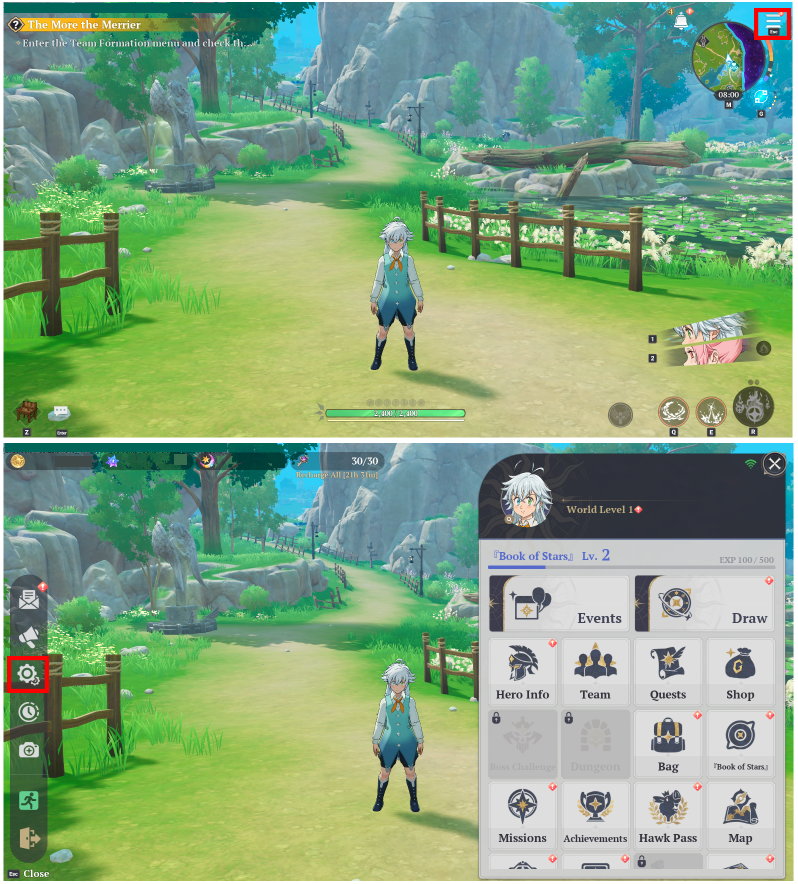
2. Select the [Account] tab, then choose [Link Account] from the submenu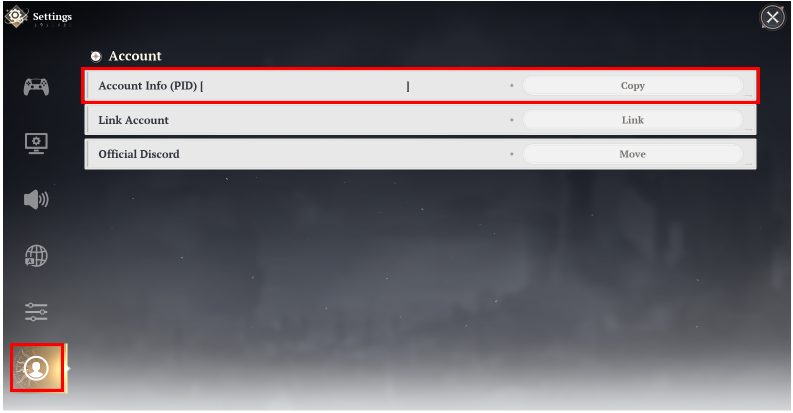
3. In the ‘Linked Account Status’ pop-up, select ‘Manage Linked Accounts’ or scan the QR code to move to the web page.
■ Notes
- Once the initial account linking is completed on PlayStation®5 or Steam, you will not be able to log in with a different linked account on that platform.
- [Log in as Guest] is not available on the Google Play Games (GPG) platform.
- X, Steam, and PlayStation accounts cannot be used as login methods.
- If you encounter any issues or difficulties with account linking, please contact Customer Support.
Thank you.